


『 永不结束的歌 』
Tarokiki
1597 字
8 分钟
手把手教你从0开始实现一个天气查询应用
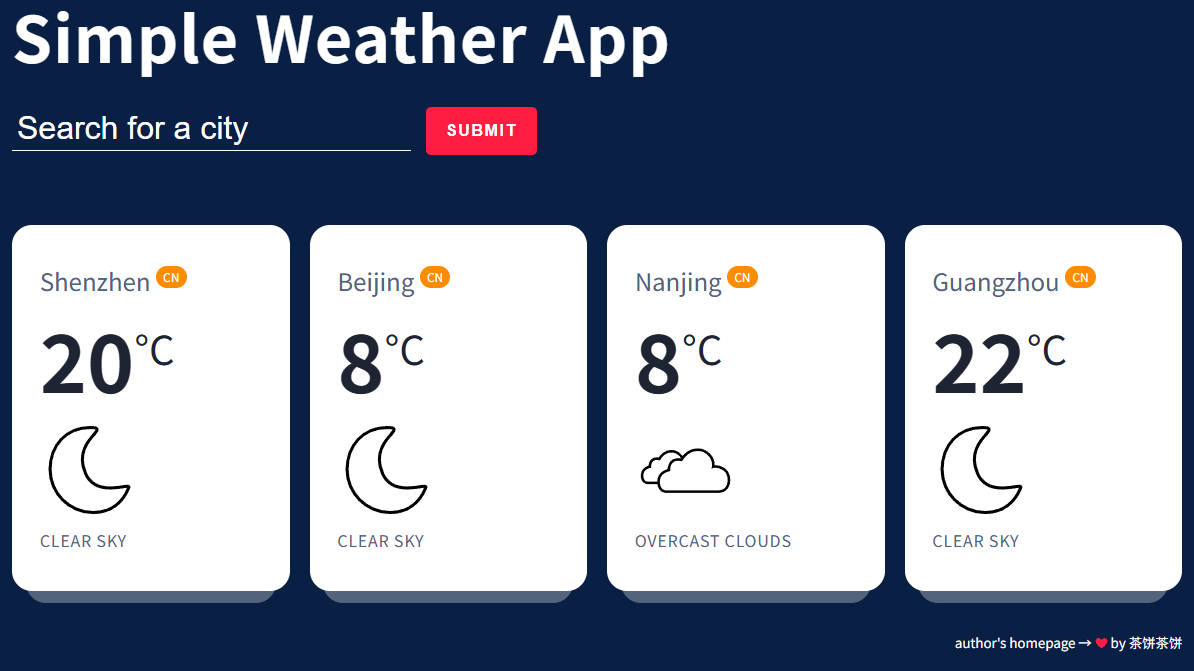
Simple Weather App
这是我开发的一个轻量级纯前端天气查询应用。它直接对接 OpenWeatherMap 的公开 API,通过简洁的交互流程,让用户能够快速获取全球任意城市的天气实况。
✨ 功能特性
- 全球城市查询:支持输入城市名称获取当前温度、天气图标及详细描述。
- 精确匹配:支持通过“城市名,国家代码”(如
shenzhen,cn)进行更精确的定位。 - 智能检测:内置重复城市检测机制,避免在结果列表中添加重复数据。
- 响应式布局:完美适配手机、平板及 PC 端,确保不同设备上的使用体验。
- 纯前端架构:无需任何后端支撑,直接在浏览器端处理逻辑与展示。
🛠️ 技术栈
本项目采用了最纯粹的 Web 前端技术,旨在展示对基础技能的掌握:
- HTML5:构建语义化的页面结构。
- CSS3:实现流畅的卡片布局与响应式适配。
- 原生 JavaScript:
- 使用
fetchAPI 处理异步网络请求。 - 动态操作 DOM,实现搜索结果的实时渲染。
- 处理复杂的字符串解析与错误反馈逻辑。
- 使用
0. 开发前准备
天气 API 选择:OpenWeatherMap,这是一个 2014 年成立的专业天气数据平台,提供全球实时、历史、预报天气数据
API Key 获取:需在官网注册账号生成专属 Key,避免共享 Key 触发调用限制。
免费版支持:当前天气 API、5 天 / 3 小时预报 API 等基础能力,满足简易应用开发需求。
天气图标与 UI 资源:使用 OpenWeatherMap 自带的官方图标集,通过 API 返回的图标代码直接调用。
1. 页面结构搭建(HTML)
采用语义化标签,设计 2 个核心区域,天气卡片通过 JS 动态生成
<!-- 搜索栏区域 --><section class="top-banner"> <div class="container"> <h1 class="heading">Simple Weather App</h1> <form> <input type="text" placeholder="Search for a city" autofocus> <button type="submit">SUBMIT</button> <span class="msg"></span> </form> </div></section>
<!-- 天气展示区域 --><section class="ajax-section"> <div class="container"> <ul class="cities"></ul> </div></section>2. 样式设计(CSS)
使用CSS 变量统一配色,结合Flex+CSS Grid实现响应式布局,添加伪元素 / 过渡效果优化视觉体验,全局字体采用 Roboto 无衬线字体。
:root { --bg_main: #0a1f44; --text_light: #fff; --text_med: #53627c; --text_dark: #1e2432; --red: #ff1e42; --darkred: #c3112d; --orange: #ff8c00;}
* { margin: 0; padding: 0; box-sizing: border-box; font-weight: normal;}
button { cursor: pointer;}
input { -webkit-appearance: none;}
button,input { border: none; background: none; outline: none; color: inherit;}
img { display: block; max-width: 100%; height: auto;}
ul { list-style: none;}
body { font: 1rem/1.3 "Roboto", sans-serif; background: var(--bg_main); color: var(--text_dark); padding: 50px;}搜索栏样式(响应式)
.top-banner { color: var(--text_light);}
.heading { font-weight: bold; font-size: 4rem; letter-spacing: 0.02em; padding: 0 0 30px 0;}
.top-banner form { position: relative; display: flex; align-items: center;}
.top-banner form input { font-size: 2rem; height: 40px; padding: 5px 5px 10px; border-bottom: 1px solid;}
.top-banner form input::placeholder { color: currentColor;}
.top-banner form button { font-size: 1rem; font-weight: bold; letter-spacing: 0.1em; padding: 15px 20px; margin-left: 15px; border-radius: 5px; background: var(--red); transition: background 0.3s ease-in-out;}
.top-banner form button:hover { background: var(--darkred);}
.top-banner form .msg { position: absolute; bottom: -40px; left: 0; max-width: 450px; min-height: 40px;}
/* 小屏适配(≤700px) */@media screen and (max-width: 700px) { .top-banner form { flex-direction: column; } .top-banner form input, .top-banner form button { width: 100%; } .top-banner form button { margin: 20px 0 0 0; } .top-banner form .msg { position: static; max-width: none; min-height: 0; margin-top: 10px; }}天气展示区样式(多列响应式 Grid)
.ajax-section { margin: 50px 0 20px;}
.ajax-section .cities { display: grid; grid-gap: 32px 20px; grid-template-columns: repeat(4, 1fr);}
/* 响应式适配 */@media screen and (max-width: 1000px) { .ajax-section .cities { grid-template-columns: repeat(3, 1fr); }}@media screen and (max-width: 700px) { .ajax-section .cities { grid-template-columns: repeat(2, 1fr); }}@media screen and (max-width: 500px) { .ajax-section .cities { grid-template-columns: repeat(1, 1fr); }}
/* 城市卡片样式 */.ajax-section .city { position: relative; padding: 40px 10%; border-radius: 20px; background: var(--text_light); color: var(--text_med);}
.ajax-section .city::after { content: ''; width: 90%; height: 50px; position: absolute; bottom: -12px; left: 5%; z-index: -1; opacity: 0.3; border-radius: 20px; background: var(--text_light);}
.ajax-section figcaption { margin-top: 10px; text-transform: uppercase; letter-spacing: 0.05em;}
.ajax-section .city-temp { font-size: 5rem; font-weight: bold; margin-top: 10px; color: var(--text_dark);}
.ajax-section .city sup { font-size: 0.5em;}
.ajax-section .city-name sup { padding: 0.2em 0.6em; border-radius: 30px; color: var(--text_light); background: var(--orange);}
.ajax-section .city-icon { margin-top: 10px; width: 100px; height: 100px;}3. 核心功能实现(JavaScript)
const form = document.querySelector(".top-banner form");const input = document.querySelector(".top-banner input");const msg = document.querySelector(".top-banner .msg");const list = document.querySelector(".ajax-section .cities");const apiKey = "你的OpenWeatherMap API Key"; // 替换为专属Key
form.addEventListener("submit", e => { e.preventDefault(); const inputVal = input.value;
// 构造API请求URL const url = `https://api.openweathermap.org/data/2.5/weather?q=${inputVal}&appid=${apiKey}&units=metric`;
// Fetch API请求天气数据 fetch(url) .then(response => response.json()) .then(data => { // 解构API返回的核心数据 const { main, name, sys, weather } = data; // 构造天气图标URL(OpenWeatherMap官方图标) const icon = `https://openweathermap.org/img/wn/${weather[0]["icon"]}@2x.png`;
// 创建并渲染城市卡片 const li = document.createElement("li"); li.classList.add("city"); const markup = ` <h2 class="city-name" data-name="${name},${sys.country}"> <span>${name}</span> <sup>${sys.country}</sup> </h2> <div class="city-temp">${Math.round(main.temp)}<sup>°C</sup></div> <figure> <img class="city-icon" src="${icon}" alt="${weather[0]["main"]}"> <figcaption>${weather[0]["description"]}</figcaption> </figure> `; li.innerHTML = markup; list.appendChild(li); }) .catch(() => { msg.textContent = "Please search for a valid city 😩"; });
// 重置表单与提示 msg.textContent = ""; form.reset(); input.focus();});定制化图标替换
将 Envato Elements 的 SVG 图标按 OpenWeatherMap 图标代码命名,仅需替换图标 URL:
// 替换原有icon构造代码const icon = `https://自定义图标地址/${weather[0]["icon"]}.svg`;关键优化:防止重复请求
解决同城市重复添加和同名城市跨国家问题,在表单提交后、API 请求前添加校验逻辑:
form.addEventListener("submit", e => { e.preventDefault(); const inputVal = input.value;
// 重复请求校验逻辑 const listItems = list.querySelectorAll(".ajax-section .city"); const listItemsArray = Array.from(listItems); if (listItemsArray.length > 0) { const filteredArray = listItemsArray.filter(el => { let content = ""; if (inputVal.includes(",")) { if (inputVal.split(",")[1].length > 2) { inputVal = inputVal.split(",")[0]; content = el.querySelector(".city-name span").textContent.toLowerCase(); } else { content = el.querySelector(".city-name").dataset.name.toLowerCase(); } } else { content = el.querySelector(".city-name span").textContent.toLowerCase(); } return content == inputVal.toLowerCase(); });
if (filteredArray.length > 0) { msg.textContent = `You already know the weather for ${filteredArray[0].querySelector(".city-name span").textContent} ...otherwise be more specific by providing the country code as well 😉`; form.reset(); input.focus(); return; // 终止后续API请求 } }
// 以下为原有API请求和渲染代码...});功能扩展思路
- 地理定位自动查询:调用浏览器 Geolocation API 获取用户当前位置,自动请求周边城市天气数据。
- 数据持久化:通过 localStorage 存储查询记录,或结合 Firebase 实现实时数据库同步。
- 天气预报可视化:集成 Highcharts.js 等图表库,生成温度 / 降水等气象趋势图。
- 天气预警提醒:集成 OpenWeatherMap 的预警 API,当有天气预警时,通过弹窗或通知提醒用户。
🚀 总结
这个项目虽然体量不大,但它完整地覆盖了前端开发中网络请求、状态管理、DOM 操作以及响应式设计等核心环节。如果你对前端基础不了解,耐心看完,你一定有所收获!
手把手教你从0开始实现一个天气查询应用
https://fuwari.vercel.app/posts/simple-weather-app/